In Short: RLS Controls Which Data Each User Sees in the Same Report
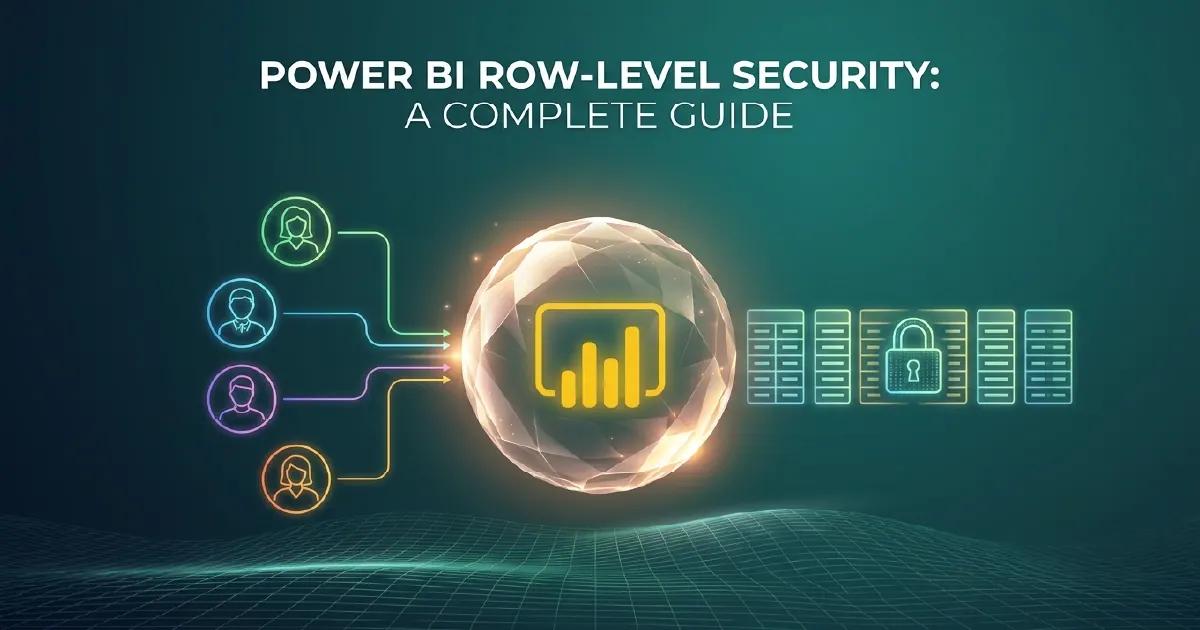
Row-level security in Power BI lets you publish one report to an entire organisation while ensuring each user only sees the data they are permitted to see. A regional manager sees their region. A salesperson sees their own pipeline. An executive sees everything. All from the same report, with no manual filtering or separate report versions.
RLS is enforced inside the semantic model itself, so the filtering happens at query time regardless of how the report is accessed - in Power BI Service, embedded in an app, or accessed via API. This guide covers the three main approaches and the implementation details that matter most.
Why Row-Level Security Matters
Without RLS, controlling data access in Power BI means one of two approaches: build separate reports for each audience, which is expensive to maintain, or restrict access to the report entirely, which defeats the purpose of self-service analytics.
RLS is the correct solution. It enforces data access rules at the model level, and those rules travel with the dataset. If a user exports data to Excel, the row-level filter still applies. If they build their own report on top of the shared semantic model, they still only see their permitted rows.
Static RLS
Static RLS is the simpler approach. You define roles in Power BI Desktop using DAX filter expressions, then assign users or Microsoft Entra security groups to those roles in Power BI Service.
Example: A role called "UK Region" with a DAX filter applied to the Region table:
[Region] = "United Kingdom"
Any user assigned to the UK Region role sees only rows where Region is United Kingdom, across all visuals in every report built on that semantic model.
When to use static RLS:
- Your audience segments are fixed and change infrequently
- The number of roles is manageable - typically fewer than twenty
- You do not need role membership to change without a dataset republish
Limitations: Each new region, department, or segment requires a new role definition and a dataset republish. At scale - say, fifty regional roles or a role per salesperson - this becomes an administrative burden. Dynamic RLS solves this.
Dynamic RLS
Dynamic RLS uses a security mapping table and the USERPRINCIPALNAME() DAX function to filter data based on the logged-in user's identity - without defining individual roles per user.
The pattern:
- Create a mapping table in your dataset - for example, columns for UserEmail and Region - that defines which user can see which data.
- Create a single DAX role that filters the data using USERPRINCIPALNAME() matched against the mapping table.
- Assign all report users to that single role in Power BI Service.
When a user opens the report, Power BI evaluates their UPN against the mapping table and filters accordingly. Adding a new user or changing their permissions requires only updating the mapping table - no role changes, no dataset republish.
When to use dynamic RLS:
- Your user base is large or changes frequently
- Access permissions are already managed in a database or HR system that you can sync to the mapping table
- You need to add or remove users without touching the dataset
Dynamic RLS is the recommended pattern for most enterprise implementations. The mapping table becomes the single source of truth for data access and can be refreshed on a schedule from your authoritative source system.
Object-Level Security
Object-level security (OLS) extends beyond rows to control which tables and columns a user can see at all. A user without permission to a column will not see it in the field list and cannot include it in their own reports.
OLS is configured using external tools such as Tabular Editor, or via TMDL in a Git-connected Fabric workflow, rather than in Power BI Desktop directly.
Common uses:
- Hiding salary columns from non-HR roles
- Restricting access to margin or cost-price data from non-finance roles
- Controlling which measures are visible to different audiences
OLS and RLS can be combined: a user might be restricted to their own region via RLS and also unable to see the cost-price column via OLS.
RLS in Microsoft Fabric and Direct Lake Mode
If your semantic model uses Direct Lake mode - reading directly from OneLake Delta files - RLS behaves slightly differently from Import mode.
In Direct Lake, row-level security causes the engine to fall back from Direct Lake to DirectQuery for queries that touch RLS-filtered tables. This is expected behaviour: the query hits the lakehouse directly rather than the in-memory cache. Performance remains good for most use cases, but it is worth understanding before production deployment so you can test it explicitly.
For organisations running Fabric, you can also enforce access at the OneLake folder level using workspace roles and item permissions - providing a complementary governance layer above the semantic model.
Common RLS Mistakes
Mistake 1: Testing as the report creator The report creator bypasses RLS by default in Power BI Desktop. Always test using the View as role feature in Model view, or by logging in as a test user in Power BI Service. Do not assume your development experience reflects what end users see.
Mistake 2: Applying filters at the report layer instead of the model Report-level filters are not security controls. A user with direct dataset access can bypass report-level filters by connecting from Excel or building their own report on the same dataset. RLS must be applied at the semantic model.
Mistake 3: Overlooking many-to-many relationships RLS filters propagate through relationships in the direction of the filter. In many-to-many relationship schemas, verify that filters propagate as expected across all related tables - it is a common source of security gaps that only appear under specific query patterns.
Mistake 4: Not auditing role membership regularly Users change roles, leave organisations, and join new teams. Entra group-based role assignment makes this easier to manage, but it still requires a periodic audit to confirm the mapping reflects current access requirements.
Testing Your RLS Before Publishing
Always validate RLS before publishing to a broad audience:
- Use Power BI Desktop's View as role feature to verify each role's data view
- In Power BI Service, use the Test as role feature on the semantic model
- For dynamic RLS, test with actual user UPNs rather than synthetic test accounts
- Confirm that data exports to Excel also respect the RLS filters
- Check that row counts in filtered views match expectations from the source data
A brief security testing checklist, signed off by the data owner, is worth including in any governed deployment process.
Getting RLS Right in Production
Row-level security that is misconfigured gives false confidence, and RLS that is badly designed slows every report that touches it. Both failure modes are common and neither is obvious from the report surface.
If that is where you are, Power BI consulting is the work we do, and how governed access works across a whole estate covers the background.
Sources and Further Reading
Frequently asked
Row-level security (RLS) is a feature that restricts which data rows each user can see within a Power BI report or dataset. It is enforced at the semantic model level, meaning the filter applies regardless of whether users access data through a report, Excel, or a direct dataset connection.
Static RLS requires a separate role definition for each audience segment (e.g. one role per region). Dynamic RLS uses a single role and a mapping table to filter by the logged-in user's identity, making it easier to manage at scale. Dynamic RLS is recommended for most enterprise implementations.
In Power BI Desktop, go to the Modelling tab and select Manage roles to define roles with DAX filter expressions. Publish the dataset to Power BI Service, then assign users or Entra security groups to roles under the dataset's Security settings.
Yes, but with a performance consideration. In Direct Lake mode, RLS causes the query engine to fall back from the in-memory cache to DirectQuery for filtered queries. Performance is still acceptable for most use cases but should be tested before production deployment.
Object-level security (OLS) controls which tables and columns are visible to different roles - not just which rows. It is configured using tools like Tabular Editor or TMDL, and can be combined with RLS for comprehensive data access control.
Yes. Row-level security filters are enforced at the dataset level, so they apply regardless of how data is accessed - including exports to Excel, Analyse in Excel connections, and reports built directly on the dataset by end users.