In Short: What Is Incremental Refresh and When Do You Need It?
It splits a table into date-based partitions and refreshes only the recent ones, leaving history untouched. A table with five years of data can then refresh in the time it takes to load the last few days. Use it when full refresh is too slow, near a timeout, or too heavy on the source - and skip it when the table is small or rows change unpredictably across all history.
The Problem It Solves
Every import dataset starts by reloading everything on each refresh, and for a small table that is fine. As history accumulates, three things happen in order:
Refresh takes longer, then it starts brushing against the time limits for your licence tier, then it fails intermittently - usually at month-end, when the data is largest and everyone needs it most.
The instinct is to ask for more time or more capacity. The better question is why you are reloading five years of history to capture yesterday's orders.
How It Works
Incremental refresh partitions the table by a date column. You define two windows:
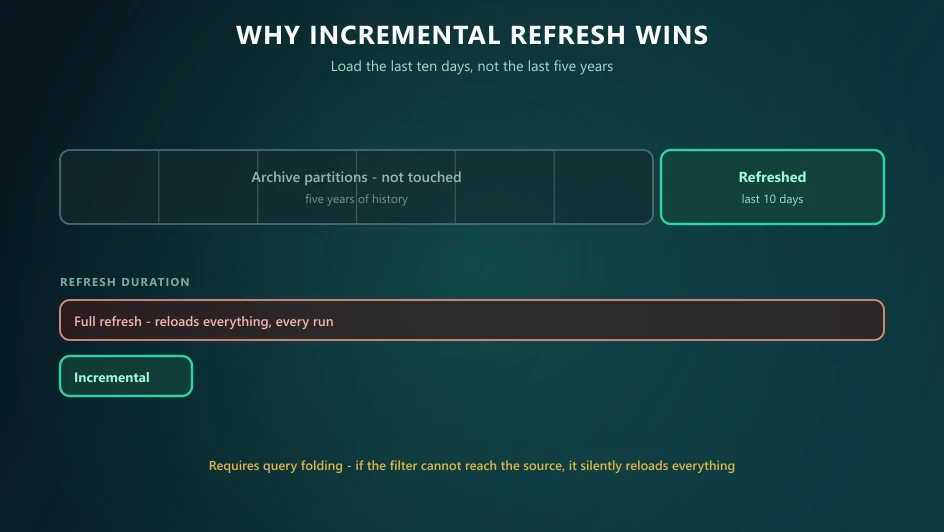
- Archive - how much history to keep, say five years. These partitions are loaded once and then left alone.
- Refresh - how far back to reload each run, say ten days. Only these partitions are rebuilt.
Power BI manages partition creation, rolling and removal automatically once configured. The result: a refresh that touches a small fraction of the data and stays roughly constant in duration as history grows.
Setting It Up
1. Create the parameters. Two date/time parameters named exactly "RangeStart" and "RangeEnd". The names are reserved and case-sensitive; anything else silently does nothing.
2. Filter on them. Apply a filter to your date column using both, with one boundary inclusive and the other exclusive so rows are never duplicated or dropped at partition edges.
3. Confirm query folding survives. This is the step that decides whether any of it works - see below.
4. Configure the policy on the table in Desktop, setting archive and refresh windows.
5. Publish and refresh once. The first refresh builds all partitions and takes as long as a full load. Subsequent ones are fast.
The Mistake That Silently Disables It
Query folding is the whole mechanism. For the partitioning to work, the "RangeStart" / "RangeEnd" filter must fold back to the source, so the source returns only the rows for that partition.
If any applied step breaks folding, Power BI pulls the entire table and filters it locally - for every partition. The configuration appears correct, the refresh appears to work, and it is slower than before, because you now do the full load repeatedly.
Check folding explicitly by viewing the native query on your final step. If it is unavailable, something upstream broke it - custom columns using functions with no source equivalent, certain merges, and index columns are common culprits. Move those steps after the filter, or do them upstream.
When It Is Not the Right Answer
Incremental refresh is a good tool with a specific shape. It fits badly when:
- Rows change unpredictably across all history. If a five-year-old record can be updated at any time, refreshing only recent partitions will miss it. Widen the window, add periodic full refreshes, or reconsider.
- The source cannot fold. Folders of files generally cannot fold a date filter, so the pattern does not apply.
- The table is small. Complexity has a cost. A table refreshing comfortably in a couple of minutes does not need partitioning.
- The real problem is elsewhere. If refresh is slow because of heavy Power Query transformation, the fix is to move that work upstream - not to do it in smaller pieces.
What Else to Consider First
Before configuring anything, check whether a simpler change removes the need:
Transform upstream. Doing the work in a Fabric pipeline or a source view means Power BI loads clean data rather than computing it during refresh. This alone often resolves the problem.
Trim the model. Unused columns and high-cardinality text cost refresh time as well as memory - see our guide to why reports run slow.
Reconsider storage mode. In Fabric, Direct Lake removes the import step altogether, which makes the whole question moot and moves freshness upstream into your pipelines.
Where Solv Systems Comes In
We treat refresh strategy as part of platform design rather than a setting to adjust when something fails. That usually means transformation upstream in Fabric, incremental loading where the shape suits it, storage mode chosen deliberately, and monitoring so a failure is noticed before a stakeholder notices it.
If your refreshes are slow enough that someone plans their morning around them, there is generally a straightforward path to making them boring again.
Sources and Further Reading
Frequently asked
A configuration that splits a table into partitions by date and refreshes only the recent ones, leaving history untouched. A table holding five years of data can then refresh in the time it takes to load the last few days rather than reloading everything each run.
When full refresh is either too slow, too close to a timeout, or too heavy on the source. If a table holds a large volume of dated history and only recent rows change, it is a good candidate. If the table is small or rows change unpredictably across all of history, it adds complexity for little gain.
Two reserved date/time parameters Power BI uses to partition the table. Your query must filter on a date column using both, and the filter has to be foldable back to the source - meaning the source does the filtering, not Power Query. Get that wrong and the configuration will appear to apply while still loading everything.
Almost always because query folding broke. If a transformation prevents the filter reaching the source, Power BI pulls the whole table and filters locally - all the complexity, none of the benefit. Check that folding survives every applied step before blaming the configuration.
Only with sources that support query folding, which in practice means databases and well-behaved APIs. File-based sources such as folders of CSVs generally cannot fold a date filter, so the pattern does not apply cleanly.
The problem it solves largely disappears there. Direct Lake reads Delta tables in OneLake without an import step, so there is no refresh to make incremental - the freshness question moves upstream into how your pipelines land data.